WordPress plugin
Site Offline Pro
Use Site Offline Pro to display a temporary page while a WordPress website is being built, updated, or taken offline. Its responsive, retina-ready layout is designed to work with any WordPress theme. Configure the page, review it in the live preview, then enable offline mode.
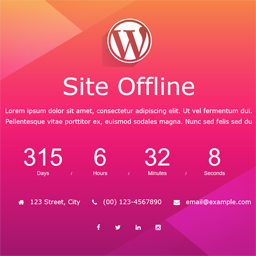
Use Site Offline Pro to display a temporary page while a WordPress website is being built, updated, or taken offline. Its responsive, retina-ready layout is designed to work with any WordPress theme. Configure the page, review it in the live preview, then enable offline mode.
Prepare the page visitors will see
Choose from eight design templates and customize the logo, background picture, colors, and contact information. Add a countdown for a planned launch or return, a background slideshow, or a YouTube video background. The layout uses Bootstrap 3.3.4, HTML5, and CSS3 animations.
Page sections include About Us, Team, Contact Information, Contact Form, Google Map, and Service. Hide sections you do not need. The add-on also lists more than 16 social profile settings with drag-and-drop arrangement, more than 500 Google Fonts, and translation-ready i18n and cross-browser support.
Keep visitors connected
Newsletter options include integrations for Mailchimp, Madmimi, iContact, Constant Contact, Campaign Monitor, and GetResponse. A subscribers list is available for managing sign-ups collected through the offline-page workflow.
Configure access and launch
Options include auto launch, IP access, user access, a landing page option, and full SEO control. Configure the access settings for the way administrators and visitors should encounter the offline page.
Install and check the result
- Install and activate Site Offline Pro in WordPress.
- Open the extension settings and pick a template or configure the page sections.
- Add the logo, background, countdown, contact details, social profiles, and newsletter settings you need.
- Review the live preview, then enable Site Offline mode with the activation control.
To verify the page, visit the site in a different browser where you are not logged in. If a cache plugin is active and the offline page does not appear, temporarily deactivate the cache plugin and check again.