WordPress plugin
Social Share for WooCommerce PRO
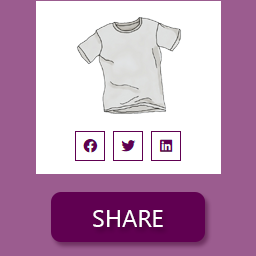
Social Share for WooCommerce PRO includes sharing controls to WooCommerce product pages. Visitors can share a product through a selected social platform or copy its link to the clipboard. For variable products, they can share a link to a specific variation, including from the pop-up modal.
Choose where shoppers share products
Social Share for WooCommerce PRO includes sharing controls to WooCommerce product pages. Visitors can share a product through a selected social platform or copy its link to the clipboard. For variable products, they can share a link to a specific variation, including from the pop-up modal.
Set platforms and show locations
Choose which social icons to show and arrange their order with drag and drop. On a single product page, place them with the product category name, after the title, or after the price, or hide them from those positions. You can also display a share icon on shop and archive pages so visitors can share from a product listing.
PRO adds floating icons on the left or right side of the browser window. When floating icons are enabled, you can hide icons from the other locations to avoid duplicate controls.
Give shoppers access to sharing settings
Choose whether each sharing item shows an icon, text, or both. The default text is “Share On.” A pop-up modal can show all available social icons while the main page shows your selected platforms. The shortcode [psfw_basic_share] lets you place social icons elsewhere on a page. It can be used with page builders such as Elementor, Divi, and Beaver Builder.
Adjust the appearance
Choose round or square icon shapes, then adjust the presentation to suit your store.
- Set icon colors, size, and hover styles.
- Adjust font size and select normal, lighter, or bold font weight.
- Add tooltips and set their text and background colors.
Configure sharing for your store
- Select the social platforms customers should see.
- Arrange the icons in the desired order.
- Choose product-page, floating, shop-page, shortcode, or pop-up placement.
- Enable copy-to-clipboard and variation-link sharing where appropriate.
- Adjust labels, tooltips, colors, sizes, font settings, and hover styles.
Install Social Share for WooCommerce PRO on your WooCommerce store, then configure its sharing, placement, and appearance options. Review the variation-link and pop-up settings, and use the shortcode when controls need to appear in another page location.