WordPress plugin
Sticky Buttons Pro
Sticky Buttons Pro lets you create floating button menus for WordPress sites. Menus remain visible as visitors scroll, keeping selected actions, navigation, support links, or sharing tools available on the page.
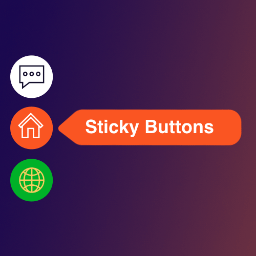
Sticky Buttons Pro lets you create floating button menus for WordPress sites. Menus remain visible as visitors scroll, keeping selected actions, navigation, support links, or sharing tools available on the page.
Build and place menus
Create unlimited sticky buttons with four shapes, individual colors and backgrounds, custom labels, and more than 2,000 Font Awesome 6 icons. Choose fixed, absolute, or static placement. Responsive controls help adapt menus to different website layouts, and custom tags help organize them for filtering and management.
Customize buttons and actions
Keep labels always visible, upload custom icons, and apply seven icon animation effects. Buttons can provide translation, social sharing, next or previous post navigation, and forced downloads. Other actions include smooth scrolling, moving to the top or bottom of a page, printing, adjusting font size, bookmarking, and sharing a URL.
These options can support calls to action such as “Book Now” or “Get a Quote,” links to help centers and support tickets, and floating tables of contents for long pages. Menus can also link to messaging services, social profiles, membership pages, special offers, app-style mobile navigation, and downloadable documents such as ebooks or PDFs.
Set when and where menus appear
Display rules let you show or hide buttons based on scroll position, a specified time interval, or visitor user roles. Create custom menus for different languages, or schedule visibility for specific dates and times. URL conditions can target specific pages or URL parameters, while referrer conditions use a visitor’s referrer URL. Browser compatibility control can hide buttons in outdated browsers.
Install the extension
In the WordPress dashboard, go to Plugins, select Add New, search for “Sticky Buttons,” pick Install Now, then select Activate. For manual installation, download the add-on ZIP file, open Plugins → Add New → Upload in the dashboard, and upload the file.