WordPress plugin
Login as User PRO
Login as User PRO helps site administrators, customer support agents, and store managers investigate account-specific issues. A permitted person selects Login as beside a registered user to view the site as that user, then selects Go back to admin to return to the original account.
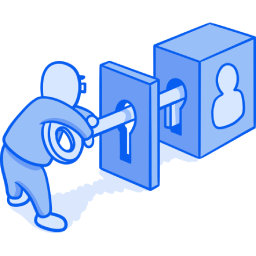
Inspect a registered visitor’s website view
Login as User PRO helps site administrators, customer support agents, and store managers investigate account-specific issues. A permitted person selects Login as beside a registered user to view the site as that user, then selects Go back to admin to return to the original account.
This can help staff investigate a missing order, course access issue, or unexpected menu from the affected user’s perspective. The plugin states that it does not request, store, or expose passwords, and that switching uses WordPress’s native authentication system.
Open the process from store and membership records
WooCommerce offers the control on the Orders list and in the order details metabox, supporting checks related to checkout, refunds, and missing orders. WooCommerce Subscriptions adds it to subscription lists and detail screens.
In MemberPress, staff can switch from Members, Subscriptions, and Transactions to check access or protected content. In SureCart, the control appears on Customers and Orders lists.
Set access and button presentation
Role management permissions let site managers limit who can use the feature and which accounts they may impersonate. For example, Shop Managers can be permitted to log in as Customers while being blocked from impersonating Administrators or Editors.
The shortcode places a Login as User button where needed, with values for its label and destination:
[login_as_user user_id="357" redirect_to="/my-account" button_name="Login as $USER"]
For Users, WooCommerce, and SureCart tables, PRO settings control whether the button column appears, its position, and its size: Small, Medium, or Large. Custom CSS can style the frontend message bar and administration buttons. The frontend bar can provide a route back to the administrator account when the support session ends.
Use the account review workflow
- Open the relevant user, order, subscription, member, customer, or transaction area.
- Select the Login as User control for the account to inspect.
- Review the site or connected account area from that user’s perspective.
- Select Go back to admin when troubleshooting is finished.
Installation and settings
Install Login as User PRO on the WordPress site where account troubleshooting is needed. In extension settings, configure permitted roles, redirects, button appearance, list columns, frontend message behavior, integrations, shortcode use, and custom CSS.